# Interactive blocks
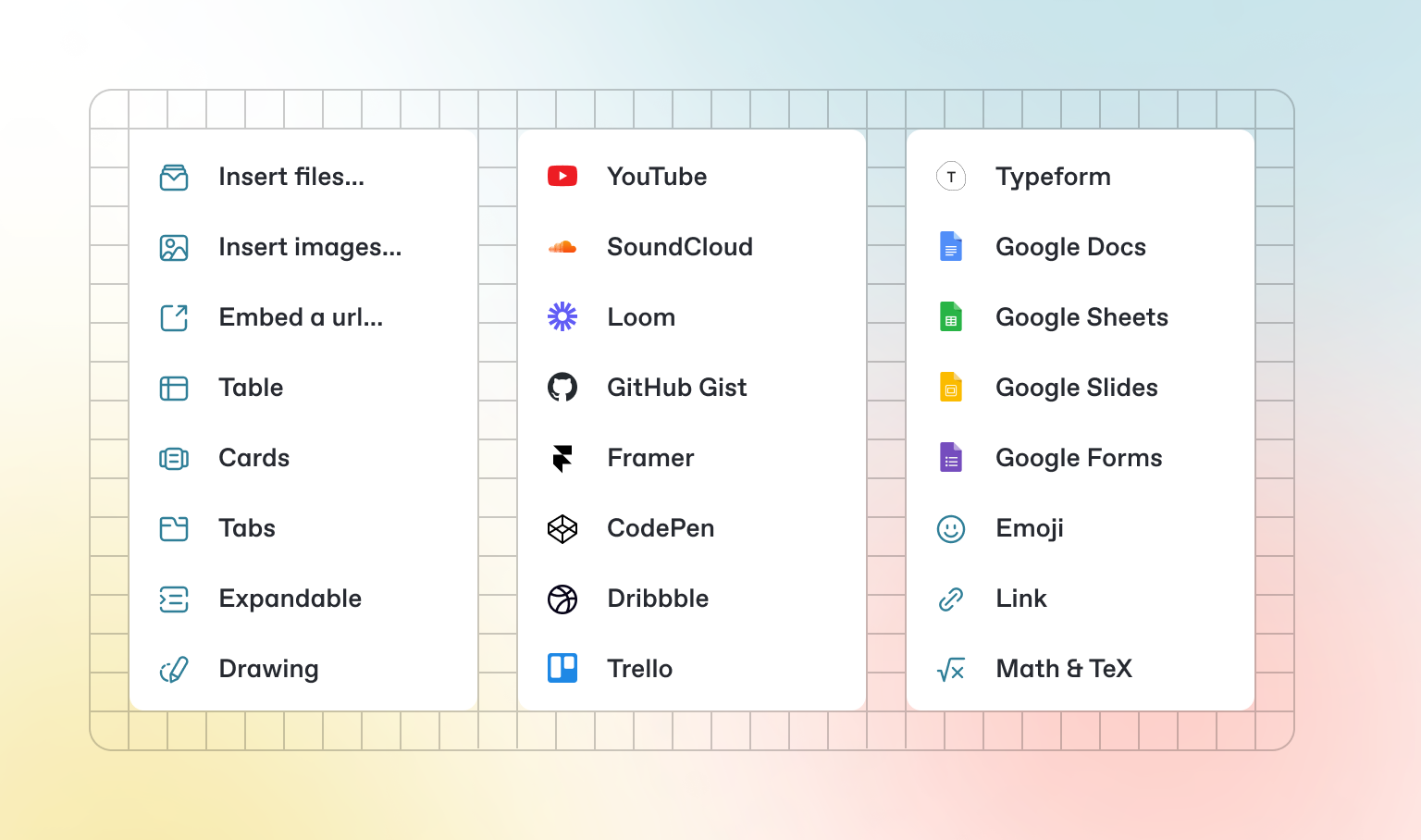
In addition to the default Markdown you can write, GitBook has a number of out-of-the-box interactive blocks you can use. You can find interactive blocks by pressing `/` from within the editor.
### Tabs
{% tabs %}
{% tab title="First tab" %}
Each tab is like a mini page — it can contain multiple other blocks, of any type. So you can add code blocks, images, integration blocks and more to individual tabs in the same tab block.
{% endtab %}
{% tab title="Second tab" %}
Add images, embedded content, code blocks, and more.
```javascript
const handleFetchEvent = async (request, context) => {
return new Response({message: "Hello World"});
};
```
{% endtab %}
{% endtabs %}
### Expandable sections
Click me to expand
Expandable blocks are helpful in condensing what could otherwise be a lengthy paragraph. They are also great in step-by-step guides and FAQs.
### Drawings
### Embedded content
{% embed url="" %}
{% hint style="info" %}
GitBook supports thousands of embedded websites out-of-the-box, simply by pasting their links. Feel free to check out which ones[ are supported natively](https://iframely.com).
{% endhint %}